<!DOCTYPE html>
<html>

<head>
    <meta charset="utf-8">
    <meta name="viewport" content="width=device-width, initial-scale=1.0">
    <meta http-equiv="X-UA-Compatible" content="IE=edge">
    <title>ScanTheSun instrukcja</title>
        <meta name="description" content="ScanTheSun aktywacja pełnej wersji">
	<meta name="keywords" content="scanthesun, ScanTheSun, scan the sun, fotowoltaika, aplikacja, panele słoneczne, panele PV, instalacja fotowoltaiczna,
	aplikacja solarna, instalacjia PV, ustawianie paneli, najlepsze ustawienie, jak ustawić panele, uzysk, opłacalność">
	<meta name="author" content="ScanTheSun">
    <link rel="stylesheet" href="styl_instrukcja.css">

    <link rel="apple-touch-icon" sizes="180x180" href="/global/img/favic/apple-touch-icon.png">
    <link rel="icon" type="image/png" sizes="32x32" href="/global/img/favic/favicon-32x32.png">
    <link rel="icon" type="image/png" sizes="16x16" href="/global/img/favic/favicon-16x16.png">
    <link rel="manifest" href="/global/img/favic/site.webmanifest">
    <link rel="mask-icon" href="/global/img/favic/safari-pinned-tab.svg" color="#5bbad5">
    <link rel="shortcut icon" href="/global/img/favic/favicon.ico">
    <meta name="msapplication-TileColor" content="#da532c">
    <meta name="msapplication-config" content="/global/img/favic/browserconfig.xml">
    <meta name="theme-color" content="#ffffff">

    <script src="../jquery-3.5.1.min.js"></script>
    <script src="../page_fonts.js"></script>
    <script src="../geneic_requests.js"></script>
   <!-- <meta http-equiv="Cache-Control" content="no-store, no-cache, must-revalidate" />
    <meta http-equiv="Cache-Control" content="post-check=0, pre-check=0" />
    <meta http-equiv="Pragma" content="no-cache" /> -->

<script>
			$(document).ready(function(){
				$('.btn').click(function(){
					$('.items').toggleClass("show");
					$('ul li').toggleClass("hide");
				});
				window.onscroll=function()
				{
					isItTimeToLoad();
				}
			});

			function isItTimeToLoad () {
				$('div[gifToLoad]').each(function(index,oElement){
					var rect = oElement.getBoundingClientRect();
					if(rect.bottom <$(window).height()+550)
					{
						$(oElement).html('<img src="'+$(oElement).attr('gifToLoad')+'">');
						$(oElement).removeAttr('gifToLoad');
					}
				});
			}
        </script>

</head>

  <body>

            <nav>
                <ul>
                    <li class="logo"
                        onclick="window.location='https://www.scanthesun.com/global/scanthesun.php?lang=EN';"></li>
                    <li class="items"><a href="https://www.scanthesun.com/global/about-us/about-us.php?lang=EN">ABOUT US</a></li>
                    <li class="items"><a href="https://www.scanthesun.com/global/about/about.php?lang=EN">ABOUT APP</a></li>
                    <li class="items"><a
                                href="https://www.scanthesun.com/global/projects/projects.php?lang=EN">PROJECTS</a></li>
                    <li class="items"><a href="https://www.scanthesun.com/global/profitability/calculator.php?lang=EN">CALCULATOR</a>
                    </li>
                    <li class="items"><a
                                href="https://www.scanthesun.com/global/partners/partners.php?lang=EN">PARTNERS</a></li>
                    <li class="items"
                        onclick="(function(){var url = $(location).attr('href').split('?')[0]+'?lang=PL'; window.location=url.replace('#','');})();return false;">
                        <a>PL</a></li>
                    <li class="items"
                        onclick="(function(){var url = $(location).attr('href').split('?')[0]+'?lang=EN'; window.location=url.replace('#','');})();return false;">
                        <a>EN</a></li>
                    <li class="btn"><a href="#"><i class="fas fa-bars"></i></a></li>
                </ul>
            </nav>


<section id="sek14">
      <div class="instrukcja">
              <h3> Welcome screen </h3><h2> Three steps in 1 minute</h2>
      </div>
</section>


 <section>
     <div class="blok">
 		<img style="width:320px;height:240px" src="img/welcome_screen.gif">
    </div>
 </section>

 <section>
      <div class="instrukcja">
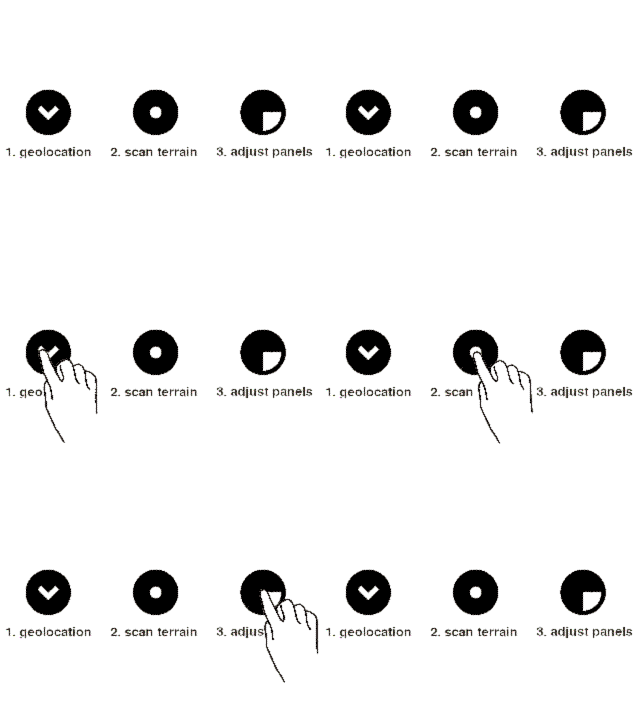
              <p>Use three app modules in order to create an energy yield report for the planned solar installation
				<ul>
					<li>Geolocation module: use Google Map to get the geographical location of your solar installation</li>
					<li>installation site measurement module: Draw the outline of neighboring buildings, trees or other objects around the installation site</li>
					<li>Panels adjustment module: Select the type, number and placement of solar modules</li>
				</ul>
				<p/>
      </div>
</section>


 <section id="sek14">
      <div class="instrukcja">
              <h3>1. Geolocation module</h3><h2>Specify the geoglocation for your solar power plant</h2>
      </div>
</section>


 <section>
     <div class="blok" >
		<img style="width:320px;height:240px" src="img/maps_localization_gps.gif">
    </div>
 </section>

 <section>
      <div class="instrukcja">
              <p><img src="img/h_localization.png" style="height:50px; float:left; margin-right:10px;">Use GPS sensor when at the solar installation site. After few seconds you will get the geographical location and the satellite image of the installation site.
				Alternatively, indicate the installation location on the map. Zoom-in the map fragment of interest and tap  in the place of your solar installation. The selected location will be indicated by a marker on the map.<br/><br/>

				The geographical location is sufficient to get the energy yield from installations with negligible surface, e.g. consisting of individual thermal collectors or small outdoor or portable devices. Then you can leave the geolocation module and you’ll adjust your solar module in the next steps. However, if the installation requires a larger area than several square meters, e.g. photovoltaic installation, then the areas (e.g. roof slopes of the building) intended for the solar installation should be marked.
			  </p>
      </div>
</section>


<!-- blok z obrazkiem -->
<section id="sek14">
      <div class="instrukcja">
              <h3>1.2 Mark surfaces</h3><h2>Mark the surfaces intended for solar installation</h2>
      </div>
</section>
 <section>
     <div class="blok" gifToLoad="img/maps_localization_draw_roof_small.gif" >
		<div style="width:320px;height:240px"></div>
    </div>
 </section>
<section>
      <div class="instrukcja">
              <p>
				Select all areas that can be intended for the solar installation in order to get its total yield report. Each surface is treated as a plane. If the area intended for solar installation consists of several flat surfaces (e.g. several roof slopes) then each surface should be marked separately. <br/><br/></p>

				<p>
				<img src="img/add_roof_white.png" style="height:50px; float:left; margin-right:10px;">
				Turn on the surface selection mode to select a single flat surface intended for the solar installation. On the satellite image touch the boundaries of a single flat surface, such as corners of one roof plane.  A polygon will be created that represents a single flat surface intended for photovoltaic installation.
			  </p>

      </div>
</section>
 <section>
     <div class="blok" gifToLoad="img/maps_localization_corners_altitudes_small_05.gif" >
		<div style="width:320px;height:240px"></div>
    </div>
 </section>
<section>
      <div class="instrukcja">
              <p>
				<img src="img/add_roof_white.png" style="height:50px; float:left; margin-right:10px;">Turn off the surface selection mode to finish editing the plane. On the displayed message, select whether the surface is horizontal or tilted. For a tilted surface, the heights of at least three corners of the marked polygon should be given. <br/><br/>
				Enter the height above the Earth's surface of the selected corner and move to the next corner. When the height for a given corner is not known, skip it and move to the next corner. After entering the heights of at least three corners, the azimuth and the tilt of the surface will be automatically determined. Specifying heights for more than three corners guarantees higher precision in determining the azimuth and the surface tilt angle. The heights of the corners need not to be known very precisely. In most cases, precision up to about 0.2-0.5 meters is sufficient and the algorithm will find the best plane for the given points. You will get higher precision by entering the heights of most distant  corners of the polygon.<br/><br/>
				For a horizontal surface, you only need to enter the height of one polygon corner. <br/><br/>
				Turn on the surface selection mode again to select the next single surface for solar installation, e.g. another flat roof fragment.

			  </p>

      </div>
</section>

<!-- blok z obrazkiem -->
<section id="sek14">
      <div class="instrukcja">
              <h3>2. Installation site measurement module</h3><h2>Outline obstacles like trees or buildings</h2>
      </div>
</section>
<section>
      <div class="instrukcja">
              <p>
			  Shadowing by a land form, adjacent buildings or trees have significant impact on energy yield from a solar installation. Determine the impact of shadowing by drawing an outline of obstacles  around the solar installation site. <br/><br/></p?
			  <p><img src="img/h_suntrack.png" style="height:50px; float:left; margin-right:10px;">When at the installation site, activate the installation site measurement module. On the device screen you will get a camera preview similar to a typical camera application. Draw the outline of the obstacles by touching their edges shown on the screen.

			  </p>
      </div>
</section>
<section>
     <div class="blok" gifToLoad="img/orientation_preview_mark_horizon_small.gif" >
		<div style="width:320px;height:240px"></div>
    </div>
 </section>
<section>
      <div class="instrukcja">
              <p>
				<img src="img/calibrate_compass.png" style="height:50px; float:left; margin-right:10px;">The installation site measurement module has several additional and important functionalities like calibration of geographical orientation sensors. Calibration requires only few seconds and is recommended before drawing  the obstacles’ outline. Description of how to perform the sensors calibration can be found within the ScanTheSun application.

			  </p>
      </div>
</section>


<!-- blok z obrazkiem -->
<section id="sek14">
      <div class="instrukcja">
              <h3>3. Panels adjustment module </h3><h2>number, type and settings of solar panels</h2>
      </div>
</section>
 <section>
     <div class="blok" gifToLoad="img/battery_optimizatiopn_colormap.gif" >
		<div style="width:320px;height:240px"></div>
    </div>
 </section>
<section>
      <div class="instrukcja">
              <p>
			  <img src="img/calculation.png" style="height:50px; float:left; margin-right:10px;">The solar panels adjustment module contains key information about the amount of solar energy reaching the installation site and about the optimal orientation of the panels. These data take into account the effect of shadowing around the installation site caused by obstacles like adjacent buildings, trees or landform.<br/>&nbsp;<br/>&nbsp;
			  </p>
			  <p>
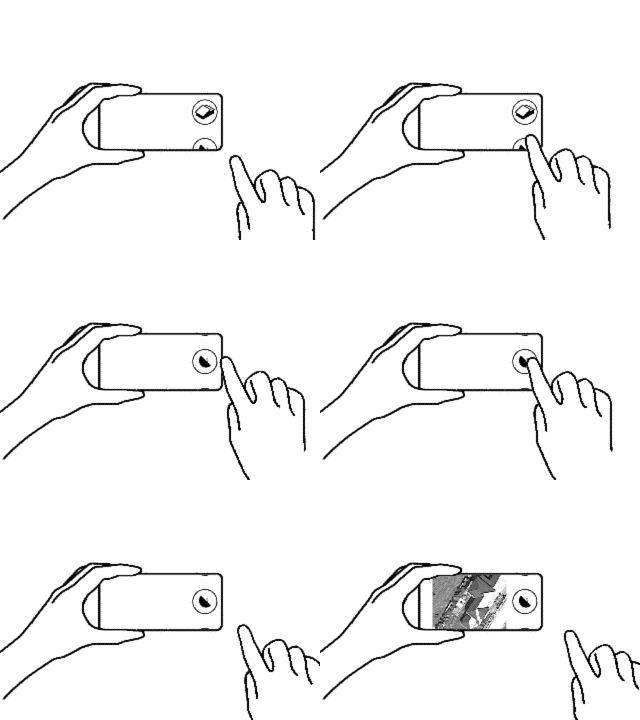
			  Set the phone (screen up) towards directions desired for your solar panels. You will find out immediately how many percent of all incoming solar energy will be captured for any direction of the solar panel . The panel alignment module works similarly to a compass and also indicates the best direction of the panels, i.e. the direction that guarantees the maximum energy yield in the vicinity of obstacles like adjacent buildings, trees or local landform.<br/>&nbsp;<br/>&nbsp;
			  </p>
			  <p>
			  Find out which part of the building has the greatest potential for harvesting the most of the solar energy.If roof surfaces have been marked in the geolocation module then their orientations will be indicated by small markings on the screen. Point the phone at a given marking to find out which surface has the best direction for solar installation project. The corresponding surface of the building will be marked at the bottom right corner of the screen.
			  </p>

      </div>
</section>

<!-- blok z obrazkiem -->
<section id="sek14">
      <div class="instrukcja">
              <h3>3.2 Solar panels selection </h3><h2>Select the model and number of solar modules you are going to use and receive precise information on the energy yield of the entire solar installation.</h2>
      </div>
</section>
 <section>
     <div class="blok" gifToLoad="img/battery_optimizatiopn_select_panel_small.gif" >
		<div style="width:320px;height:240px"></div>
    </div>
 </section>
<section>
      <div class="instrukcja">
              <p>
			  The solar modules are grouped into two types: <br/>&nbsp;&nbsp;&nbsp;&nbsp;photovoltaic panels<br/>&nbsp;&nbsp;&nbsp;&nbsp;thermal collectors.<br/><br/></p>
			  <p><img src="img/select_panel.png" style="height:50px; float:left; margin-right:10px;"> Choose a specific model from a given group. All calculations will be repeated taking into account the efficiency and optics of the selected solar panel model. Taking into account the optics of a selected solar panel may lead to a change of the best panels direction for harvesting the maximum solar energy since the algorithm now knows how the panel “sees” the incoming sunlight.
			  </p>
      </div>
</section>
<!-- blok z obrazkiem -->
<section id="sek14">
      <div class="instrukcja">
              <h3>3.3 The best settings of PV-panels or thermal collectors</h3><h2>  Check the best orientation of the solar modules for different solar irradiation components.</h2>
      </div>
</section>
 <section>
     <div class="blok" gifToLoad="img/battery_optimizatiopn_direct_diffuse.gif" >
		<div style="width:320px;height:240px"></div>
    </div>
 </section>
<section>
      <div class="instrukcja">
              <p>
			  Photovoltaic panels and thermal collectors differ significantly in the their principles of solar energy conversion. In the case of photovoltaic panels both, the direct and the diffused solar radiation components are transformed into usable energy. On the other hand, the thermal collectors converts mostly the direct radiation component into the usable energy.<br/><br/>
			  </p>
			  <p><img src="img/todirad.png" style="height:50px; float:left; margin-right:10px;">Check the optimal direction and amount of energy for solar radiation components appropriate for your panels: direct + diffuse components for photovoltaic panels or direct component for thermal collectors. The selected solar radiation type will be indicated in the upper left corner on the screen.

			  </p>
      </div>
</section>
<!-- blok z obrazkiem -->
<section id="sek14">
      <div class="instrukcja">
              <h3>3.4 The best direction for selected season</h3><h2>Set your solar panels in the best direction for a specific season</h2>
      </div>
</section>
 <section>
     <div class="blok" gifToLoad="img/battery_optimizatiopn_select_month_small.gif" >
		<div style="width:320px;height:240px"></div>
    </div>
 </section>
<section>
      <div class="instrukcja">
              <p>
			  <img src="img/january.png" style="height:50px; float:left; margin-right:10px;">If you are looking for the best solar panels adjustment for a given season then select the  initial- and the final-month of the season. The amount of solar energy and the best orientation of the panels for the selected season will be presented on the screen. The choice of e.g. March and September as the initial- and the final- month, respectively, means the a season from the beginning of March to the end of September. However, the choice of September and March as the initial- and the final-month, respectively, means a season from the beginning of September to the end of March of the following year. By default, the season is set for the whole year from the beginning of January to the end of December.

			  </p>
      </div>
</section>
<!-- blok z obrazkiem -->
<section id="sek14">
      <div class="instrukcja">
              <h3>3.5 Energy yield forecast </h3><h2>See the energy yield forecast for your solar installation</h2>
      </div>
</section>
 <section>
     <div class="blok" gifToLoad="img/battery_optimization_daily_energy_curves.gif" >
		<div style="width:320px;height:240px"></div>
    </div>
 </section>
<section>
      <div class="instrukcja">
              <p>
			  <img src="img/energy_chart.png" style="height:50px; float:left; margin-right:10px;">See the energy yield forecast for your solar installation. Get the ratings for yield, panel orientation and shadow avoidance. Create an online report for your investor or installer.
			  </p>
      </div>
</section>


<!-- blok z obrazkiem -->
<section id="sek14">
      <div class="instrukcja">
              <h3>Installation performance forecast, data and charts</h3><h2>See charts and data about your solar installation.</h2>
      </div>
</section>
 <section>
     <div class="blok" gifToLoad="img/battery_optimization_daily_energy_curves.gif" >
		<div style="width:320px;height:240px"></div>
    </div>
 </section>
<section>
      <div class="instrukcja" >
              <p>
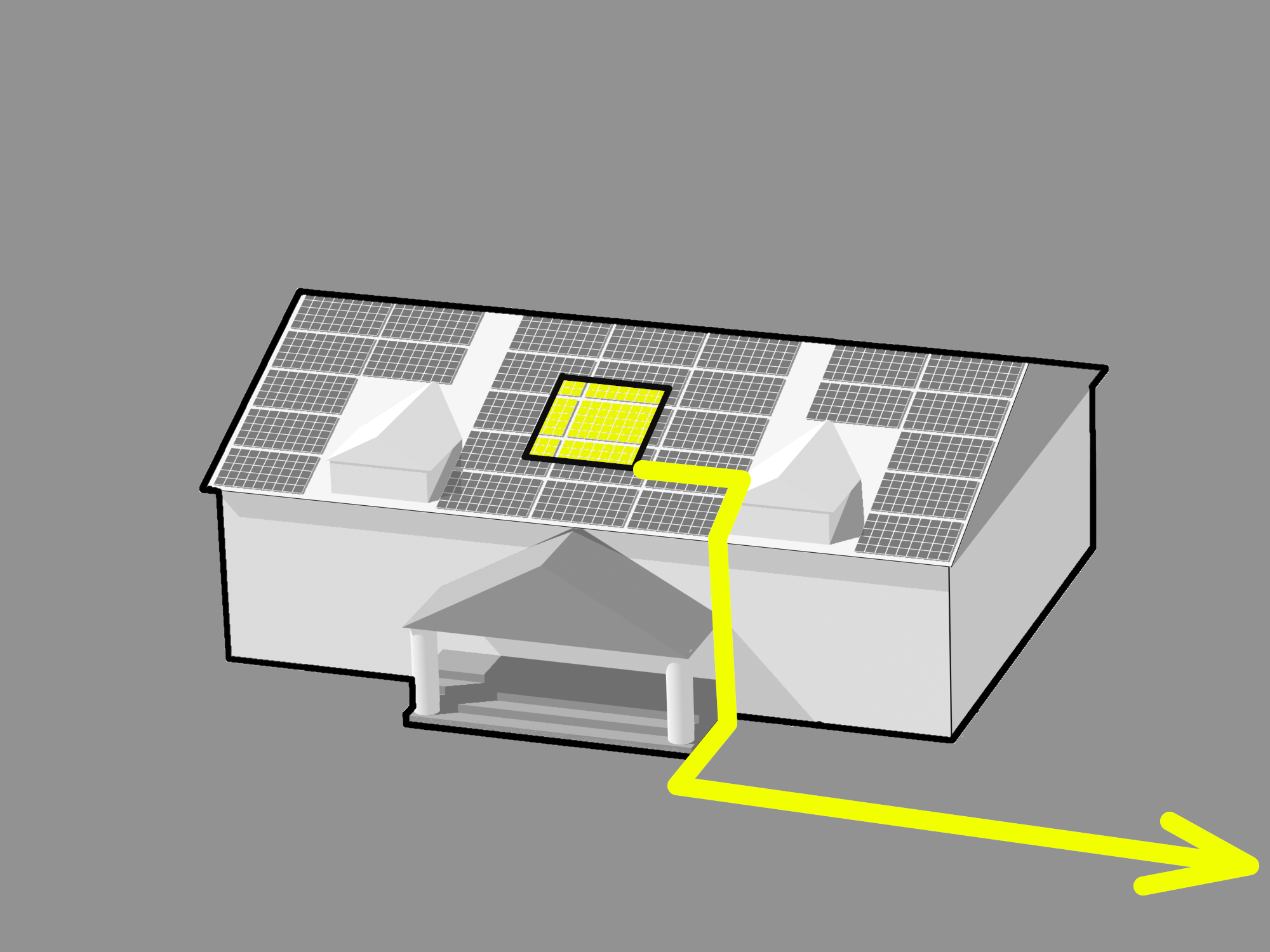
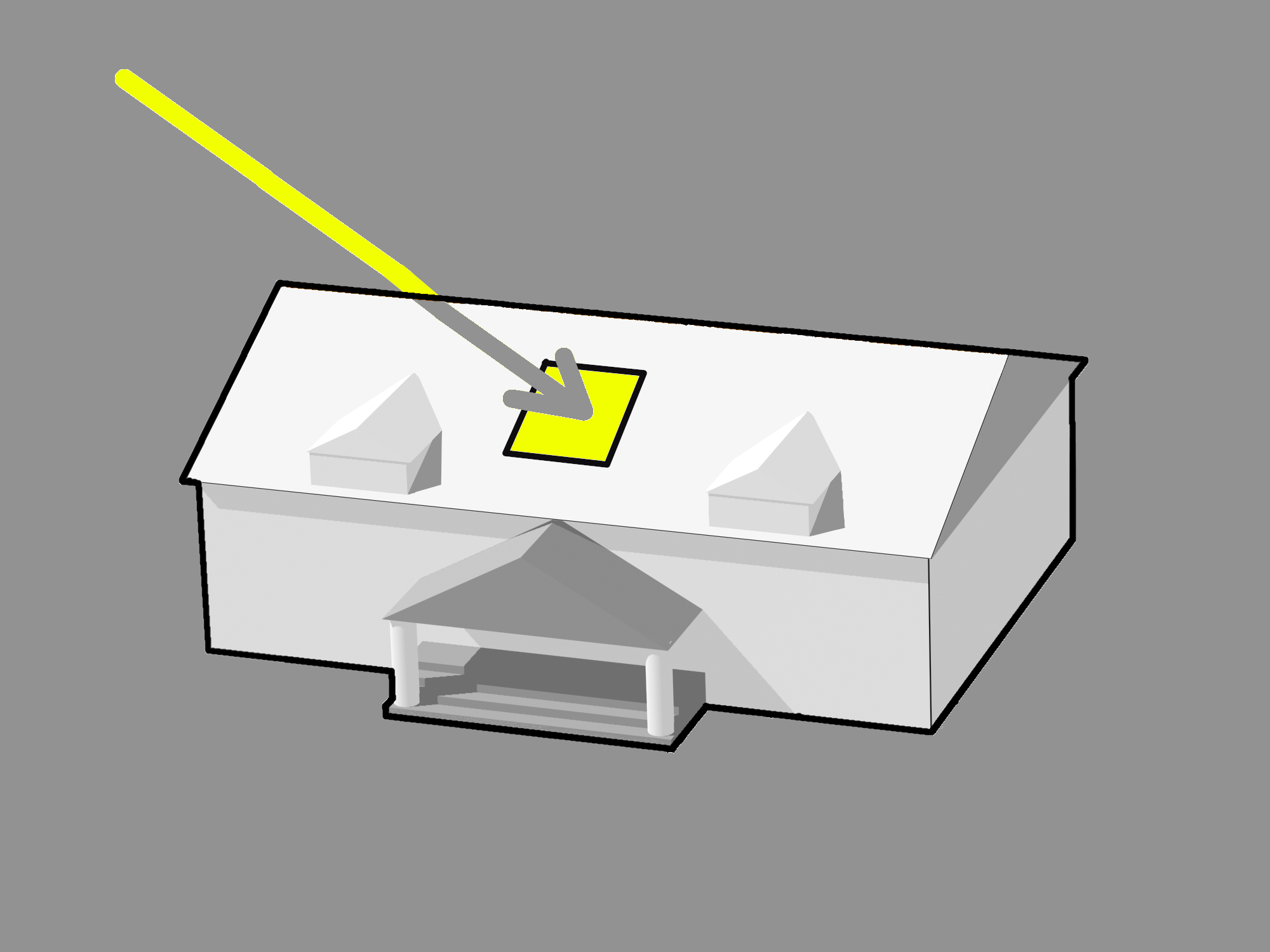
			  <img src="img/energy_chart.png" style="height:50px; float:left; margin-right:10px;">Graphs presenting the predicted power output of your installation in an hourly basis will be shown in the central part of the screen. You will see power jumps in the hours when your solar power plant gets in the  shadow of obstacles around the installation site. In the bottom left corner you will find information about the average daily amount of energy produced and about the energy loss due to shading or panels orientation. The daily average values are calculated as an average over the whole year or over the selected season. The units and nature of the data presented in the charts depend on the previously specified features of the installation:<br/>&nbsp;<br/>&nbsp;</p>
			  <div class="tabela" style="height: 900px; position:relative;">
			<div style="width: 25%; left: 0%; height: 5%; position:absolute; top: 0%; display:flex ;align-items: center;justify-content:center;">
				<div style="padding: 0%" >specified:</div>
			</div>
			<div style="width: 75%; left: 25%; height: 5%; position:absolute; top: 0%; display:flex ;align-items: center;justify-content:center;background:#DDDDDD">
				<div style="padding: 0%" >data obtained:</div>
			</div>
			<div style="width: 25%; left: 0%; height: 15%; position:absolute; top: 5%; display:flex ;align-items: center;justify-content:center;;background:#DDDDDD">
				<div style="padding: 0%" >* building<br/>surfaces<br/><br/> <span style="color:#34558B">* solar panel<br/>model</span> </div>
			</div>
			<div style="width: 25%; left: 0%; height: 20%; position:absolute; top: 20%; display:flex ;align-items: center;justify-content:center">
				<div style="padding: 0%" >* yes<br/><br/><span style="color:#34558B">* yes</span></div>
			</div>
			<div style="width: 75%; left: 25%; height: 20%; position:absolute; top: 20%; display:flex ;align-items: center;justify-content:center;background:#DDDDDD">
				<div style="padding: 0%" > <img src="img/battery_optim_roof_with_panels.png" style="width: 120px;float:right"/>energy yield from the entire surface of the property [kWh]</div>
			</div>
			<div style="width: 25%; left: 0%; height: 20%; position:absolute; top: 40%; display:flex ;align-items: center;justify-content:center;background:#DDDDDD">
				<div style="padding: 0%" >* yes<br/><br/><span style="color:#34558B">* no</span></div>
			</div>
			<div style="width: 75%; left: 25%; height: 20%; position:absolute; top: 40%; display:flex ;align-items: center;justify-content:center">
				<div style="padding: 0%" ><img src="img/battery_optim_roof_no_panels.png" style="width: 120px;float:right"/>insolation of the entire surface of the property [kWh]</div>
			</div>

			<div style="width: 25%; left: 0%; height: 20%; position:absolute; top: 60%; display:flex ;align-items: center;justify-content:center;">
				<div style="padding: 0%" >* no<br/><br/><span style="color:#34558B">* yes</span></div>
			</div>
			<div style="width: 75%; left: 25%; height: 20%; position:absolute; top: 60%; display:flex ;align-items: center;justify-content:center;background:#DDDDDD">
				<div style="padding: 0%" ><img src="img/battery_optim_roof_with_panels_per_m2.png" style="width: 120px;float:right"/>Energy yield per one square meter of panels set in the selected direction [kWh/m2]</div>
			</div>

			<div style="width: 25%; left: 0%; height: 20%; position:absolute; top: 80%; display:flex ;align-items: center;justify-content:center;background:#DDDDDD">
				<div style="padding: 0%" >* no<br/><br/><span style="color:#34558B">* no</span></div>
			</div>
			<div style="width: 75%; left: 25%; height: 20%; position:absolute; top: 80%; display:flex ;align-items: center;justify-content:center">
				<div style="padding: 0%" ><img src="img/battery_optim_roof_no_panels_per_m2.png" style="width: 120px;float:right"/>Insolation per one square meter in the chosen direction [kWh/m2]</div>
			</div>
			</div>

      </div>
</section>

<!-- blok z obrazkiem -->
<section id="sek14">
      <div class="instrukcja">
              <h3>Forecast for individual months</h3><h2>See charts for selected months.</h2>
      </div>
</section>
 <section>
     <div class="blok" gifToLoad="img/energy_curves_months_preview_small.gif" >
		<div style="width:320px;height:240px"></div>
    </div>
 </section>
<section>
      <div class="instrukcja">
              <p>
			  <img src="img/next.png" style="height:50px; float:left; margin-right:10px;">Data for the selected month will be shown in the charts. In addition to total solar radiation (solid line) the data for diffuse solar radiation (dashed line) will be shown on screen.
			  </p>
      </div>
</section>


<!-- blok z obrazkiem -->
<section id="sek14">
      <div class="instrukcja">
              <h3>Forecast for individual parts of the building</h3><h2>See data for individual surfaces of the property.</h2>
      </div>
</section>
 <section>
     <div class="blok" gifToLoad="img/energy_curves_roofs_preview_small.gif" >
		<div style="width:320px;height:240px"></div>
    </div>
 </section>
<section>
      <div class="instrukcja">
              <p>
			  <img src="img/add_roof_white.png" style="height:50px; float:left; margin-right:10px;">Data for individual surfaces of the building (if previously selected in the geographical location module) will be shown on the screen.

			  </p>
      </div>
</section>


<!-- blok z obrazkiem -->
<section id="sek14">
      <div class="instrukcja">
              <h3>Detailed online report</h3><h2> Create an online report for your investor or installer. </h2>
      </div>
</section>
 <section>
     <div class="blok" gifToLoad="img/energy_curves_save_report_small.gif" >
		<div style="width:320px;height:240px"></div>
    </div>
 </section>
<section>
      <div class="instrukcja">
              <p>
			  <img src="img/measurement_upload_help.png" style="height:50px; float:left; margin-right:10px;">Enter the email address which the energy yield report will be sent to. A link to the created report will be sent to the mailbox provided. The link contains an 8-digit code so that only you or a person you give the link will get access to the obtained results. The online energy yield report contains additional charts, ratings and recommendations.
			  </p>
      </div>
</section>


<!-- stopka-->
<link rel="stylesheet" href="/global/php_modules/footer.css">
<footer>
<section id="sek8">

    <div class="stopka">


        <div class="leftbox">
            <h2>scan the sun</h2>
            <div class="ramka">
                <p>ScanTheSun - effective pv installation project within 1 minute</p>
            </div>

        </div>


        <div class="centerbox">
            <h2>Address</h2>
            <div class="ramka">
                <div class="adres">
                    <span class="fas fa-map-marker-alt"></span>
                    <span class="text">Lublin, Zana 11a</span>
                </div>

                <div class="email">
                    <span class="fas fa-envelope"></span>
                    <span class="text">contact@scanthesun.com</span>
                </div>
                <div class="email" style="cursor:pointer" onclick="(function(){window.location='https://www.facebook.com/Scanthesun-1776743762556506/';})();">
                    <span class="fab fa-facebook-f"></span>
                    <span class="text">Facebook</span>
                </div>
                <div class="email" style="display:none">
                    <span class="fab fa-linkedin-in"></span>
                    <span class="text">LinkedIn</span>
                </div>
                <div class="email" style="cursor:pointer" onclick="(function(){window.location='https://www.youtube.com/channel/UCB-UdGyliG0tioeEZTnXbtQ';})();">
                    <span class="fab fa-youtube"></span>
                    <span class="text">YouTube</span>
                </div>
            </div>
        </div>
        <div class="rightbox">

            <div class="ramka">
                <img src="/global/img/oznaczenia_en.jpg" id="oznacznia_fundusz"/>
            </div>


        </div>
<!--        <div class="rightbox" style="display:none">-->
<!--            <h2>newsletter</h2>-->
<!--            <div class="ramka">-->
<!--            <form action="#">-->
<!--              <div class="email">-->
<!--                <div class="text">Email *</div>-->
<!--                  <input type="email" required>-->
<!--              </div>-->
<!--            </form>-->
<!---->
<!--            <div class="btn">-->
<!--            <button type="submit">submit</button>-->
<!--            </div>-->
<!--        </div>-->


    </div>


</section>
</footer>

<!-- stopka-->


  </body>
</html>